
How to add your Brightspace (D2L) calendar to Google Calendar
Brightspace has every quiz, assignment and course event your instructors set. Google Calendar has your shifts, classes and everything else. Keeping both in your head is how a due date slips by.
Brightspace by D2L can share its calendar as a link that Google Calendar reads. Unlike most learning platforms, it hides that link behind a setting you have to switch on first. This guide shows where that setting is, the three ways to use the link, and what to check when the button you need is not there.
The short version
- In Brightspace, open the Calendar. From a course homepage, click the arrow on the Calendar widget and choose Go to Calendar.
- Click Settings, tick Enable Calendar Feeds, and click Save.
- Back on the Calendar page, click Subscribe.
- Under Calendar Subscriptions, choose All Calendars and Tasks or a single course, and copy the link.
- On a computer, open Google Calendar. Next to Other calendars, click +, choose From URL, paste the link and click Add calendar.
These steps follow D2L’s guide to the Calendar tool. Your school may rename menu items or move the Calendar to its own navbar link, but the Settings and Subscribe controls are the same.
Where the Subscribe option lives
The step most people miss is the second one. Until Enable Calendar Feeds is ticked in your Calendar settings, Brightspace does not show Subscribe at all. It is a personal setting, so turning it on affects only your own calendar.
There is a second switch above yours. Brightspace administrators control whether calendar feeds are allowed for the whole institution, through a setting D2L lists in its Schedule configuration variables. It is on by default, but a school can turn it off. If it is off, you will not find the option in your settings, and nothing you change on your side will bring it back.
When you click Subscribe, the window offers a few choices:
- All Calendars and Tasks: one link covering every course you are enrolled in, plus your personal tasks.
- Tasks Only: just the tasks you add yourself in the Calendar tool.
- A single course: one link for that course alone.
The same window has a Download button. That gives you a .ics file, which
is a snapshot, not a live link. More on that below.
What the feed carries, and what it leaves out
The feed is a link to a file in the iCalendar (.ics) format, which almost
every calendar app reads. It carries what you see in the Brightspace Calendar
tool for the calendars you chose: course events, and the due dates and start
or end dates that instructors publish there.
That last part matters. In Brightspace, an instructor decides whether an assignment, quiz or discussion date shows in the calendar. If a due date is on the assignment page but not in your Brightspace Calendar, it is not in the feed either. Only the instructor can fix that.
Things that are not in the feed:
- Dates that never reach the Calendar tool, as above.
- Courses you hid. If you unticked a course in the Calendar’s course selector, check that it is shown again.
- Your Google events. The feed only goes one way, from Brightspace out.
Three ways to get Brightspace into Google Calendar
Option 1: subscribe with “From URL”
This is the method in the short version. Google Calendar stores the link and re-reads it from time to time. It is free, and for a quick view of your week it works. The limits:
- Slow updates. Google does not say how often it refreshes a subscribed calendar, and you cannot change it. A new quiz or a moved deadline can take several hours to a day to show up. Our article on why Google Calendar subscriptions stop updating explains the reasons.
- Read-only events. You cannot edit a subscribed event, move it, or add a note like “start the draft Monday”.
- Computer only for setup. You cannot subscribe from the Google Calendar phone app (Google’s help page). Add it on a computer and it then shows on your phone.
Option 2: import the file once
Click Download in the Brightspace Subscribe window, then use Settings ›
Import & export in Google Calendar to import the .ics file. The events
become normal, editable events in a calendar you pick.
They also never update again. When an instructor pushes a deadline back, your calendar keeps the old date. Use this only for a schedule that will not change, such as a published final exam timetable.
Option 3: sync the link into a calendar you own
The third option keeps the Brightspace link as the source and copies its events into one of your own Google calendars, checking for changes every few minutes. New items are added, moved dates move, and removed items disappear.
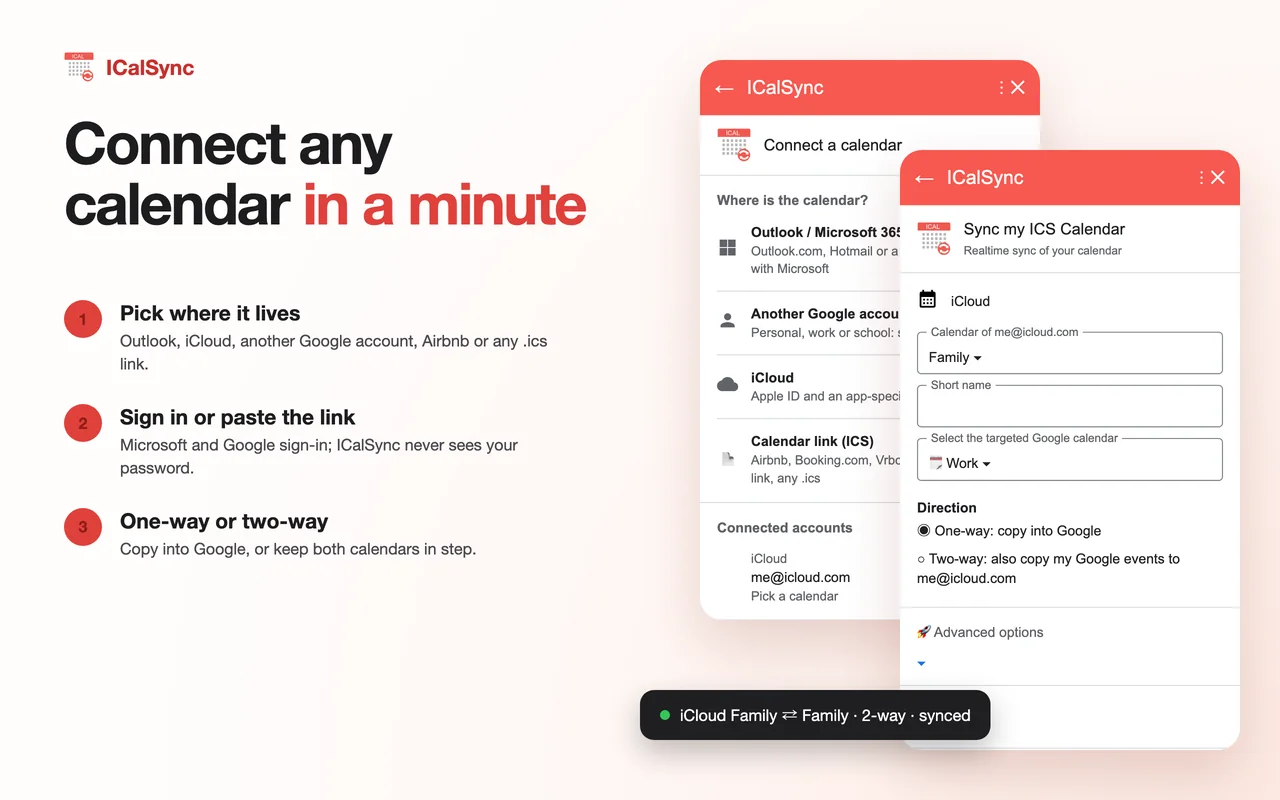
That is what ICalSync does. It runs in the right-hand side panel of Google Calendar on a computer, so there is no separate app to keep open.
Side by side
| Subscribe (From URL) | Import once | Sync (ICalSync) | |
|---|---|---|---|
| New and moved due dates | Hours to a day, on Google’s schedule | Never | Every 5 to 15 minutes, or right away with Sync now |
| Edit, recolor or add notes | No | Yes | Yes |
| Reminders on each due date | No per-event control | Manual | Your calendar’s default reminders apply |
| Set up from a phone | No | No | No (Google Calendar add-ons run on a computer) |
| Cost | Free | Free | 14-day free trial, then a paid plan from $4/month |
Setting up the sync with ICalSync
- Install ICalSync from the Google Workspace Marketplace and open it from the right-hand side panel in Google Calendar.
- On the start card, under Something else, choose Other calendar link (.ics). There is no Brightspace button; the Canvas / school button is for Canvas only, so skip it.
- Paste the link you copied from Subscribe, give it a short name such as Brightspace, and pick the Google calendar the events should land in.
- Click Sync.
ICalSync checks the link every 5 minutes on the trial and the Pro plan, and every 15 minutes on Personal. Sync now runs a check right away, which is handy right after an instructor announces a change. The sync is one-way: edits you make in Google Calendar do not go back to Brightspace.
A separate Google calendar called Brightspace is worth creating first (Other calendars › + › Create new calendar). You get its own color, you can hide it in one click, and a default reminder such as “1 day before” applies to every due date.
The 14-day trial starts when you connect your first calendar, not when you install, and needs no credit card. After that, Personal is $4 a month or $39 a year for 5 calendars, and Pro is $9 a month or $86 a year for 20.
Fixing common problems
There is no Subscribe button
Open Settings in the Calendar tool and check that Enable Calendar Feeds is ticked and saved. If the option is missing from Settings entirely, your school has disabled calendar feeds. Ask your help desk; only an administrator can change it.
One course is missing
If you copied a single-course link, it only ever covers that course. Go back to Subscribe, pick All Calendars and Tasks, and replace the old link. If you want a few courses but not all, you need one link per course, each added separately. If the course still does not appear, confirm it is ticked in the Brightspace Calendar’s course list and that its dates show there.
The link stopped working
D2L’s documentation does not describe a button to reset or regenerate the feed link, and the controls can differ between Brightspace versions and schools. What is clear is that the feed depends on Enable Calendar Feeds: if it gets switched off, by you or by your school, apps can no longer read the calendar. Turn it back on, open Subscribe, copy the link again, and replace the old one wherever you used it.
Times are off by an hour or more
Brightspace shows times in the time zone set in your Brightspace account settings, which your school may set for you. Google Calendar uses its own, under Settings › General. If you study remotely or travel, check both. When they disagree, due times look shifted.
Every due date appears twice
You probably added the link twice, for example once with From URL and once in a sync tool, or both an all-courses link and a single-course link. Remove the extra calendar under Other calendars and keep one.
Keep the link to yourself
The Subscribe link includes a long private key, and it works without a password. Anyone who has it can read the calendars it covers. Paste it only into tools you trust. When you ask for help in a forum or a group chat, describe the problem and leave the link out.
Which option to choose
If you want a rough view of your week and your instructors rarely change dates, From URL is free and good enough. If you plan your days around due dates, or your courses shift deadlines mid-term, the delay will eventually cost you, and a sync that checks every few minutes is the safer choice. Import once only for schedules that are final.
The same steps work for any platform with a calendar link. Our Canvas calendar guide covers Canvas, where the link sits in a different place, and the ICalSync help pages go through every setting.
Questions
How do I add my Brightspace calendar to Google Calendar?
In Brightspace, open the Calendar, click Settings, tick Enable Calendar Feeds and save. Click Subscribe, choose All Calendars and Tasks or one course, and copy the link. On a computer, open Google Calendar, click the plus sign next to Other calendars, choose From URL, paste the link and click Add calendar.
Why is there no Subscribe button in my Brightspace calendar?
First check that Enable Calendar Feeds is ticked under Settings in the Calendar tool. If that option is not there at all, your school has turned calendar feeds off for everyone. Only a Brightspace administrator can turn them back on, so ask your school's help desk.
Why is my Brightspace calendar not updating in Google Calendar?
A calendar added with From URL is refreshed on Google's schedule, which Google does not publish and you cannot change. In practice a new or moved due date can take several hours to a day to appear. A sync tool such as ICalSync checks the link every few minutes and copies changes into a calendar you own.
Should I subscribe to all courses or one course at a time?
All Calendars and Tasks gives you one link that covers every course you are enrolled in. Pick a single course only if you want some courses and not others, or want each course in its own color. That means one link per course.
Is the Brightspace calendar link private?
The link opens without a password, so anyone who has it can read the calendars it covers. Paste it only into tools you trust and leave it out of group chats and forum posts.
Brightspace due dates in Google Calendar, minutes after they change
14-day free trial from your first calendar. No credit card.