
How to add your Canvas calendar to Google Calendar (and keep it up to date)
Canvas knows every due date you have. Google Calendar is where you actually plan your week. Until the two meet, you are checking two places and hoping nothing slips between them.
The good news: Canvas can publish your whole course calendar as a link, and Google Calendar can read that link. The setup takes about two minutes. The less good news: the standard setup updates slowly, hides a few items, and leaves you with events you cannot edit. This guide covers the setup, then each of those problems and how to get around it.
The short version
- In Canvas, open Calendar in the left menu.
- In the right-hand column, scroll down and click Calendar Feed.
- Copy the link that appears.
- On a computer, open Google Calendar. Next to Other calendars, click + and choose From URL.
- Paste the link and click Add calendar.
Your Canvas events appear as a new calendar in the left sidebar. That is the whole setup, and for many students it is enough. Read on if you want changes to show up quickly, or if something looks wrong.
What the Canvas Calendar Feed is
The Calendar Feed is a web address that points to a file in the iCalendar
format (.ics), the standard nearly every calendar app can read. Canvas builds
it for you personally, from every course you are enrolled in. Each time an app
opens the link, Canvas generates a fresh copy of your calendar.
A Canvas feed link usually looks like this:
https://yourschool.instructure.com/feeds/calendars/user_AbC123xYz.ics
Schools with their own Canvas address will show a different first part, such
as canvas.yourschool.edu, but the link still contains /feeds/calendars/ and
ends in .ics. If the link you copied looks like the Calendar page itself, you
copied the wrong thing. Go back and click Calendar Feed again.
According to Instructure’s own guide, the feed carries events and assignments from all your course calendars, covers events up to about a year ahead and the last 30 days, and holds up to 1,000 items. That last limit rarely matters for one student, but it can for a teacher with many sections.
Three ways to get Canvas into Google Calendar
There are three ways to use that link. They look similar, and they behave very differently once the term is under way.
Option 1: subscribe with “From URL”
This is the method in the short version above, and the one most school help desks describe. Google Calendar stores the link and fetches the file again from time to time.
It is free and takes two minutes. It has three limits worth knowing before you rely on it:
- Slow updates. Google does not publish how often it re-reads a subscribed link, and you cannot make it go faster. In practice, a new assignment or a moved deadline can take several hours to a day to appear. We explain why in why your Google Calendar subscription is not updating.
- Read-only events. Subscribed events cannot be edited, moved or annotated. You cannot add a note like “start this on Monday” to a due date.
- Computer only for setup. Google Calendar does not let you subscribe to a calendar from the phone app (Google’s help page). Add it once on a computer and it will then show on your phone.
Option 2: import the file once
Google Calendar can also import an .ics file under Settings → Import &
export. You would download the feed file and import it.
This copies a snapshot. The events become fully editable, but they never update again. When a teacher moves a quiz, your calendar still shows the old date, which is worse than having no date at all. Use this only for something that will not change, such as a printed exam timetable.
Option 3: sync the feed into a calendar you own
The third option keeps the Canvas link as the source, and copies its events into one of your own Google calendars, checking for changes every few minutes. New assignments are added, moved deadlines move, and deleted items disappear.
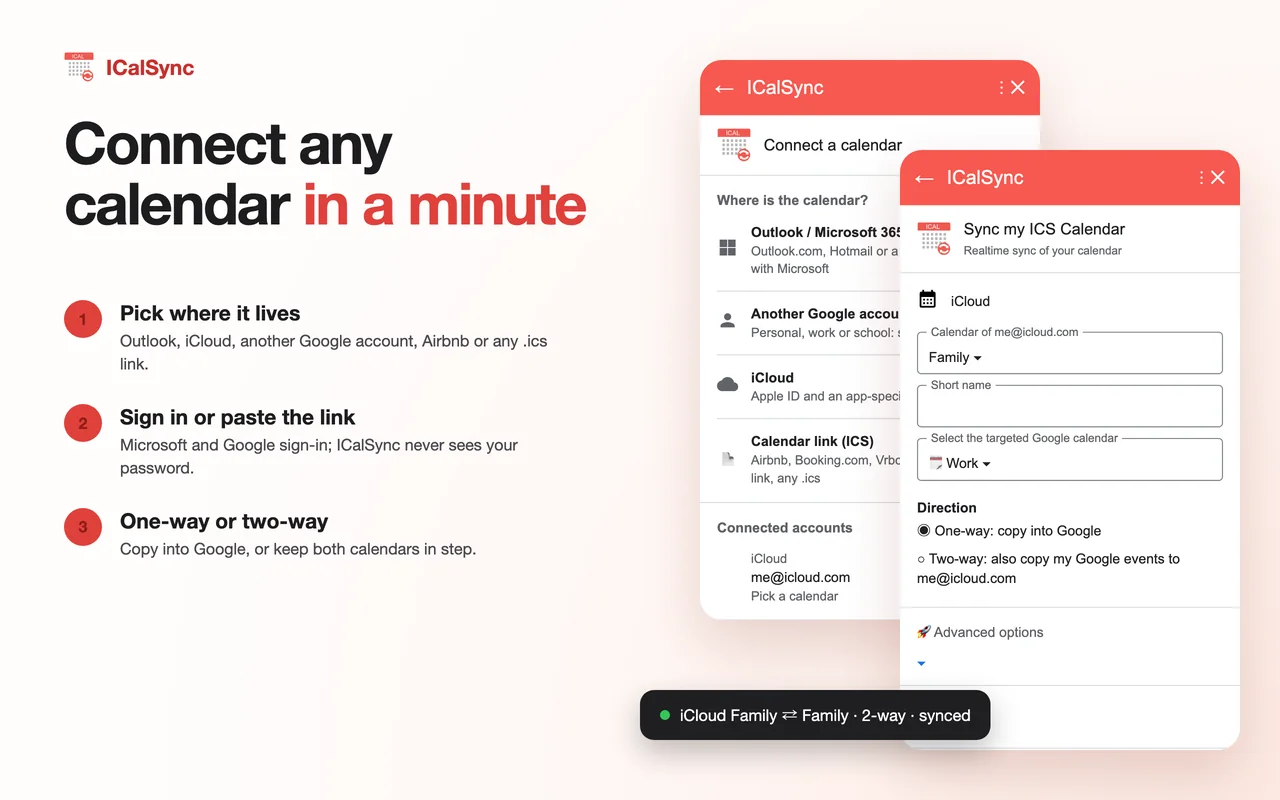
This is what ICalSync does. It runs as a side panel inside Google Calendar, so there is nothing to install on your phone or computer beyond the add-on itself.
Side by side
| Subscribe (From URL) | Import once | Sync (ICalSync) | |
|---|---|---|---|
| New and moved due dates | Hours to a day, on Google’s schedule | Never | Every 5 to 15 minutes, or right away with Sync now |
| Edit, recolor or add notes | No | Yes | Yes |
| Reminders on each due date | No per-event control | Manual | Your calendar’s default reminders apply |
| Set up from a phone | No | No | No (Google Calendar add-ons run on a computer) |
| Cost | Free | Free | 14-day free trial, then a paid plan; a free plan updates one calendar once a day |
Setting up the sync with ICalSync
- Install ICalSync from the Google Workspace Marketplace and open it from the right-hand panel of Google Calendar.
- Under School & work, pick Canvas / school. The add-on shows the same three Canvas steps as above, so you can copy the link without leaving the page.
- Paste the Calendar Feed link, give it a name such as Canvas, and choose the Google calendar the events should land in.
It is worth creating a separate Google calendar called Canvas first (Other calendars → + → Create new calendar). You can then give it its own color, hide it in one click during holidays, and set a default reminder such as “1 day before” that every due date picks up.
The 14-day trial starts when you connect your first calendar, not when you install, and it does not ask for a card.
What is not in the Canvas feed
Some items never reach any calendar app, whichever option you choose, because Canvas does not put them in the feed:
- To Do items you add yourself in Canvas.
- Assignments without a due date.
- Anything older than about 30 days.
- A new course, sometimes. Instructure recommends copying the Calendar Feed link again after you enroll in a new course. If a course is missing at the start of a term, copy the link again and replace the old one.
If something with a date is still missing, check that the course calendar is ticked in the Canvas Calendar sidebar. Canvas only shows, and exports, what is there.
Fixing common problems
Nothing shows up after adding the link
Check what you pasted. A link to the Canvas Calendar page, or a link copied from
the browser’s address bar, will not work. The feed link contains
/feeds/calendars/ and ends in .ics. In Google Calendar, also make sure the
new calendar is ticked under Other calendars.
Times are off by an hour or more
Canvas writes times in the time zone set in your Canvas profile. If you study remotely or moved, open Account → Settings in Canvas and check the time zone there, then check Google Calendar’s own time zone under Settings → General. Assignment due times shift when the two disagree.
Every due date appears twice
You probably added the link twice, once with From URL and once in a sync tool, or subscribed again after an earlier attempt seemed to fail. Remove the extra calendar from Other calendars in Google Calendar and keep one.
The link stopped working
If Google Calendar or a sync tool reports that the link cannot be read, your school may have moved to a new Canvas address. Copy a fresh link from Calendar Feed and replace the old one.
Keep the link to yourself
The feed link works without a password. Anyone who has it can read your course schedule, and in some courses the event descriptions include more than dates. Paste it only into tools you trust, and do not share it in group chats or forums when asking for help. If you want help setting up, describe the problem and leave the link out.
Which option to choose
If you mainly glance at your calendar to see the shape of the week, subscribing with From URL is free and fine. If you plan your work around due dates, or your teachers move things around, the delay will catch you at some point, and a sync that checks every few minutes is worth it.
The same approach works for other learning platforms that offer a calendar
link, such as Moodle, Blackboard and Brightspace, and for any other calendar
with an .ics link. Our guide to syncing an Outlook calendar into Google
Calendar covers the school or work account
side, and the ICalSync help pages walk through every
setting.
Questions
How do I add my Canvas calendar to Google Calendar?
In Canvas, open Calendar in the left menu and click Calendar Feed at the bottom of the right-hand column. Copy the link. On a computer, open Google Calendar, click the plus sign next to Other calendars, choose From URL, paste the link and click Add calendar.
Why is my Canvas calendar not updating in Google Calendar?
A calendar added with From URL is refreshed on Google's schedule, which Google does not publish and you cannot change. In practice a new or moved due date can take several hours to a day to appear. A sync tool such as ICalSync checks the link every few minutes and copies the changes into a calendar you own.
Can I add the Canvas calendar from my phone?
Not with the From URL option: Google Calendar only lets you subscribe to a calendar from a computer browser. Once it is added there, it shows in the Google Calendar app on your phone too.
Why are some Canvas assignments missing from Google Calendar?
The Canvas feed only carries items that have a date. To Do items, undated assignments and anything older than about 30 days are not in the feed. If a new course is missing, copy the Calendar Feed link again after you enroll.
Is the Canvas Calendar Feed link private?
The link works without a password, so anyone who has it can read your course schedule. Paste it only into tools you trust and do not share it in group chats or forums.
Canvas due dates in Google Calendar, minutes after they change
14-day free trial from your first calendar. No credit card.