
Getting started
ICalSync copies the events of your other calendars (Outlook, iCloud, another Google account, Airbnb, Booking.com or any iCal link) into Google Calendar and keeps them up to date. It can also copy your Google events back (two-way).
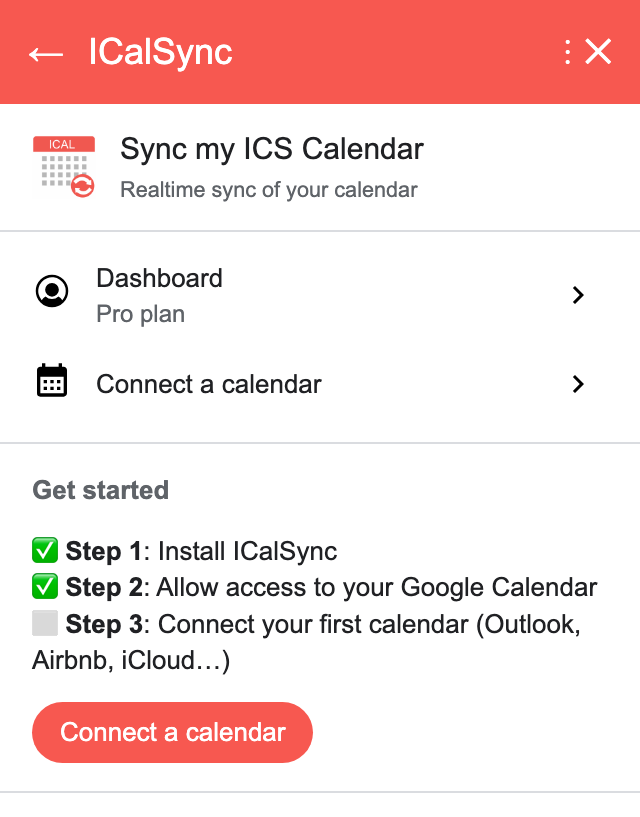
- Open the ICalSync listing on the Google Workspace Marketplace and choose Install. Google shows the permissions the add-on needs: calendar access, so it can create and update the events you ask for.
- Open Google Calendar and click the ICalSync icon in the right side panel.
- Allow access to your Google Calendar when ICalSync asks.
- Click Connect a calendar and follow the steps below.
Administrators can install it for a whole domain from the same listing.
Connect a calendar
Connect a calendar asks where the calendar is. Accounts you connect once appear under Connected accounts: click one to sync another of its calendars, or Disconnect it.
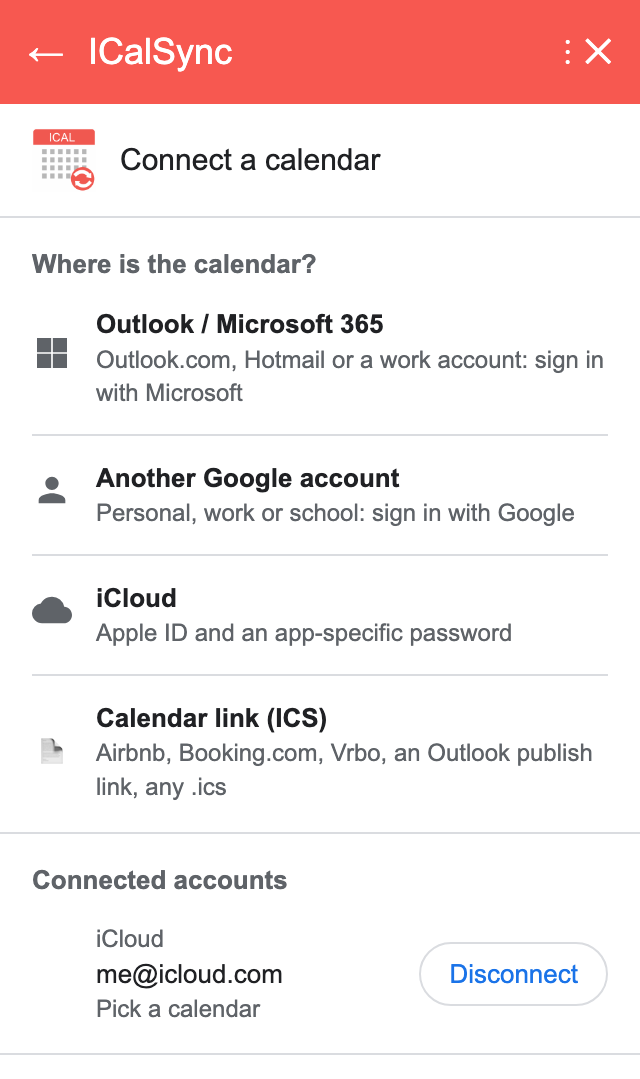
Outlook / Microsoft 365
- Choose Outlook / Microsoft 365.
- A page names the ICalSync account the calendar will be added to. Check it is yours, then Continue.
- Sign in with Microsoft (Outlook.com, Hotmail or a work account) and accept.
- Back in ICalSync, open Connect a calendar, click the account under Connected accounts and pick the calendar.
Work accounts
Some companies only let their administrator approve apps. If Microsoft says you need approval, ask your IT team, or use the publish link of your Outlook calendar instead.
If Outlook is not in the list yet, use the calendar link of your Outlook calendar: Outlook on the web › Settings › Calendar › Shared calendars › Publish a calendar, choose Can view all details, publish and copy the ICS link.
Another Google account
Sync a personal calendar into your work account, or the other way round.
- Choose Another Google account.
- Check the ICalSync account named on the page, then Continue.
- Pick the other Google account and accept. (The account ICalSync already uses is refused: its calendars are already available.)
- Back in ICalSync, click the account under Connected accounts and pick the calendar.
Apple iCloud
Apple does not let other apps use your Apple ID password, so ICalSync uses an app-specific password:
- Open account.apple.com › Sign-In and Security › App-Specific Passwords.
- Create one named ICalSync and copy it (format
xxxx-xxxx-xxxx-xxxx). - In ICalSync choose iCloud, enter your Apple ID and that password, then Connect.
- Pick the calendar.
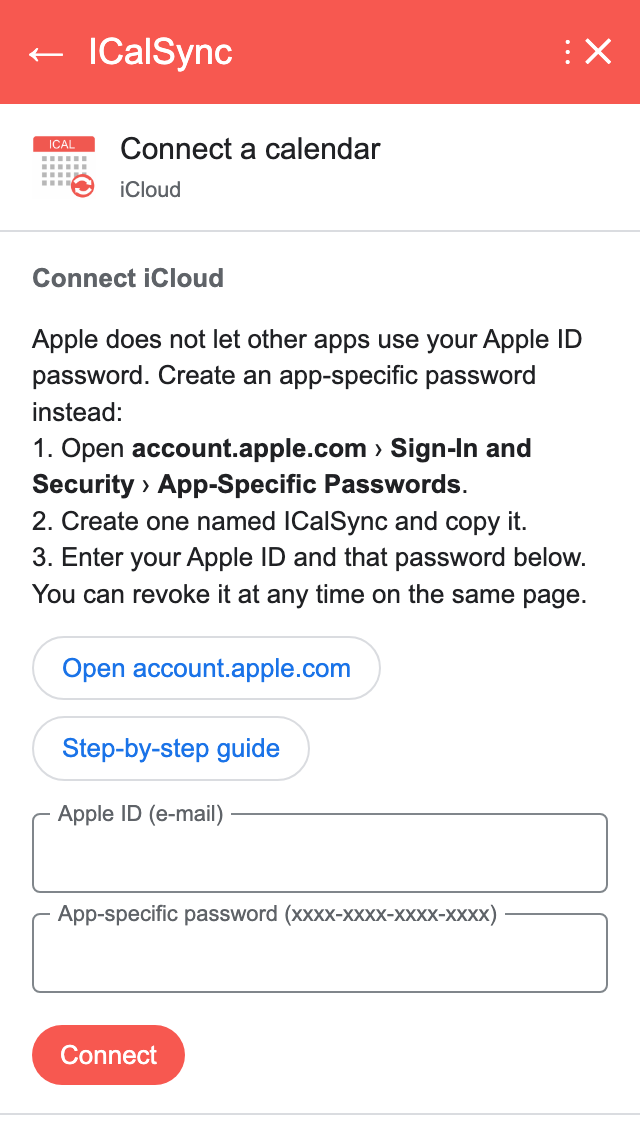
You can revoke the password at any time on the same Apple page; ICalSync then shows Account disconnected until you connect again.
Calendar link (ICS)
For any calendar that can publish an iCal link: Airbnb, Booking.com, Vrbo, Expedia, school and sports schedules, booking tools, or an Outlook calendar without sign-in.
- Find the link in the system that owns the calendar. It sits under a menu
called share, publish, subscribe, export or sync, and usually ends in
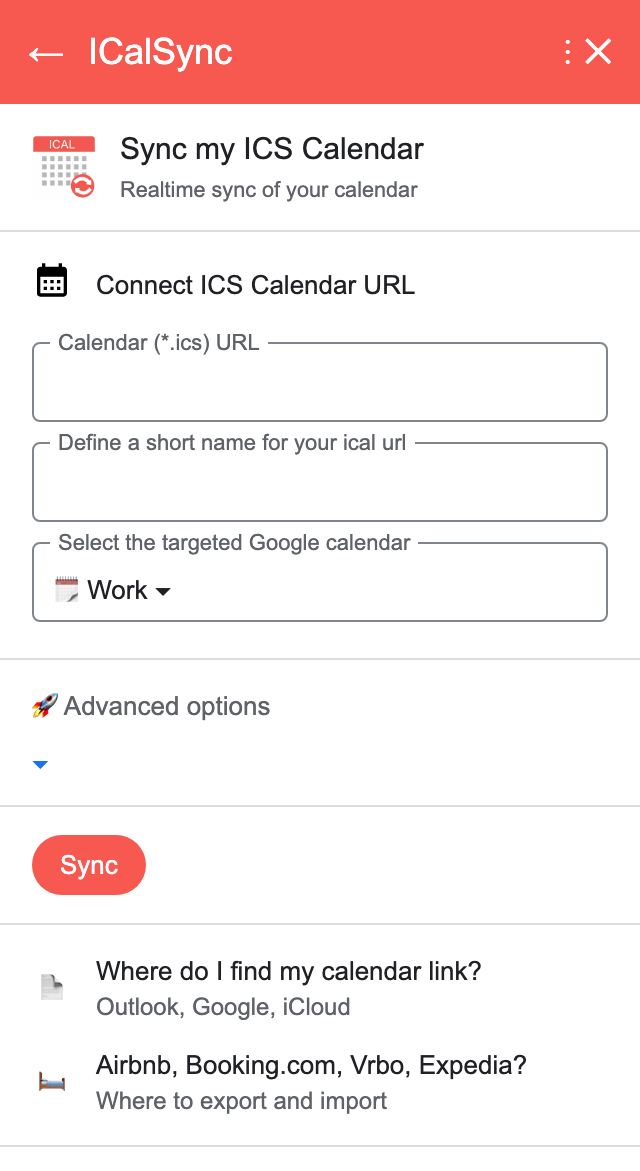
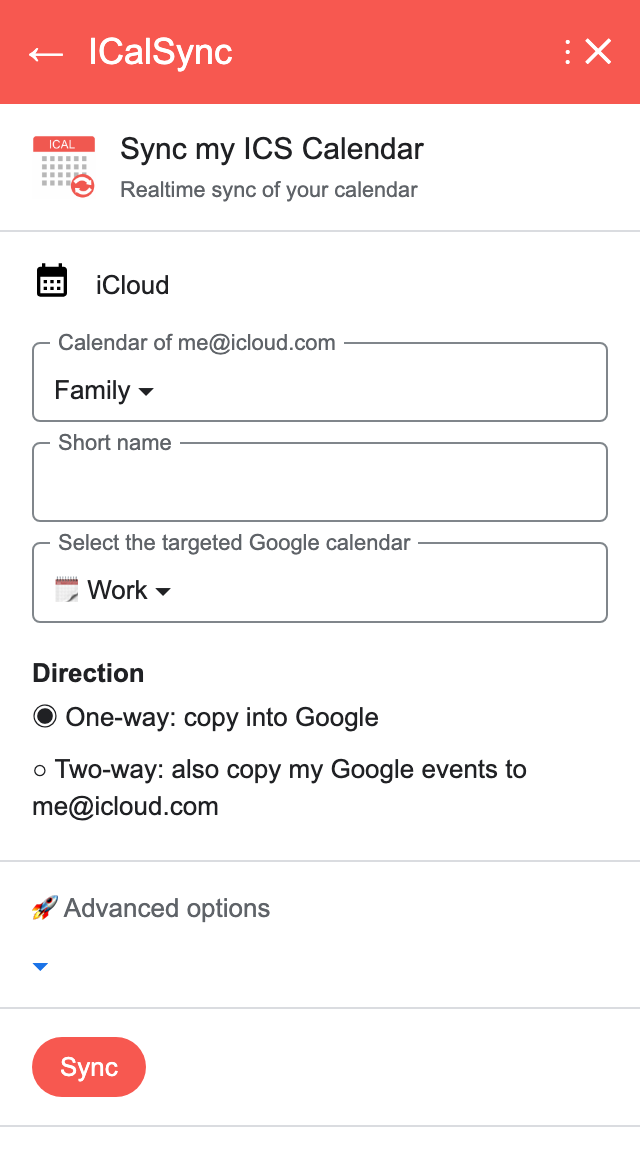
.ics. - Choose Calendar link (ICS), paste it, give it a short name and pick the Google calendar to write to.
- Click Sync.
| Source | Where the link is |
|---|---|
| Outlook / Microsoft 365 | Settings › Calendar › Shared calendars › Publish a calendar › ICS link |
| Another Google Calendar | Settings › your calendar › Integrate calendar › Secret address in iCal format |
| Apple iCloud | Share the calendar as a Public Calendar and copy the link (webcal:// works) |
| Airbnb, Booking.com, Vrbo, Expedia | See Rental properties |
One-way or two-way
For an account calendar (Outlook, iCloud, another Google account), the form asks for a Direction:
- One-way copies the calendar into Google.
- Two-way also copies the events you create in the chosen Google calendar to the other calendar. It needs a calendar that account can write to.
How two-way behaves:
- Edit or delete an event in the calendar where you created it: its copy follows within minutes.
- A copy edited by hand is overwritten at the next change of its original; a copy deleted by hand comes back.
- Events ICalSync copied are marked, so they never bounce back and forth.
- Repeating Google events are copied as single occurrences, for the next 12 months.
- Deleting the synchronization also removes its copies.
Advanced options (hide titles, descriptions or locations, mark as private,
add an identifier like [Work]) apply to the copies in both directions.
Manage your calendars
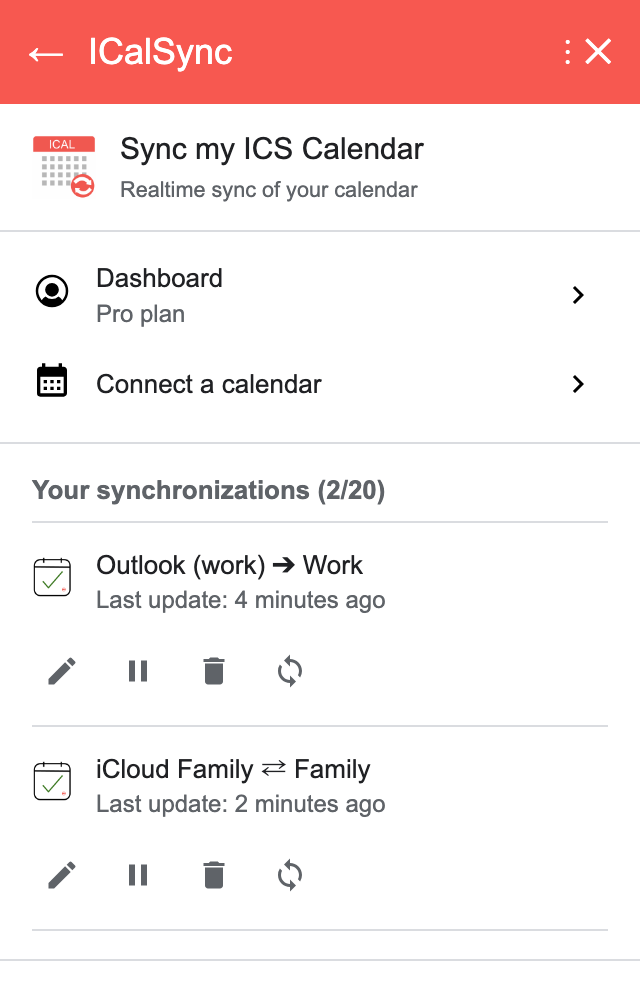
The home card lists your synchronizations with your plan’s limit. Under each one:
| Button | What it does |
|---|---|
| ✏️ Edit | Change the name and options |
| ⏸ Pause / ▶ Resume | Stop syncing for a while; a paused calendar frees its place in your plan |
| 🗑 Delete | Asks first, then removes the events it copied |
| 🔄 Sync now | Runs it immediately and refreshes the card |
A ⇄ arrow marks a two-way synchronization.
Rental properties
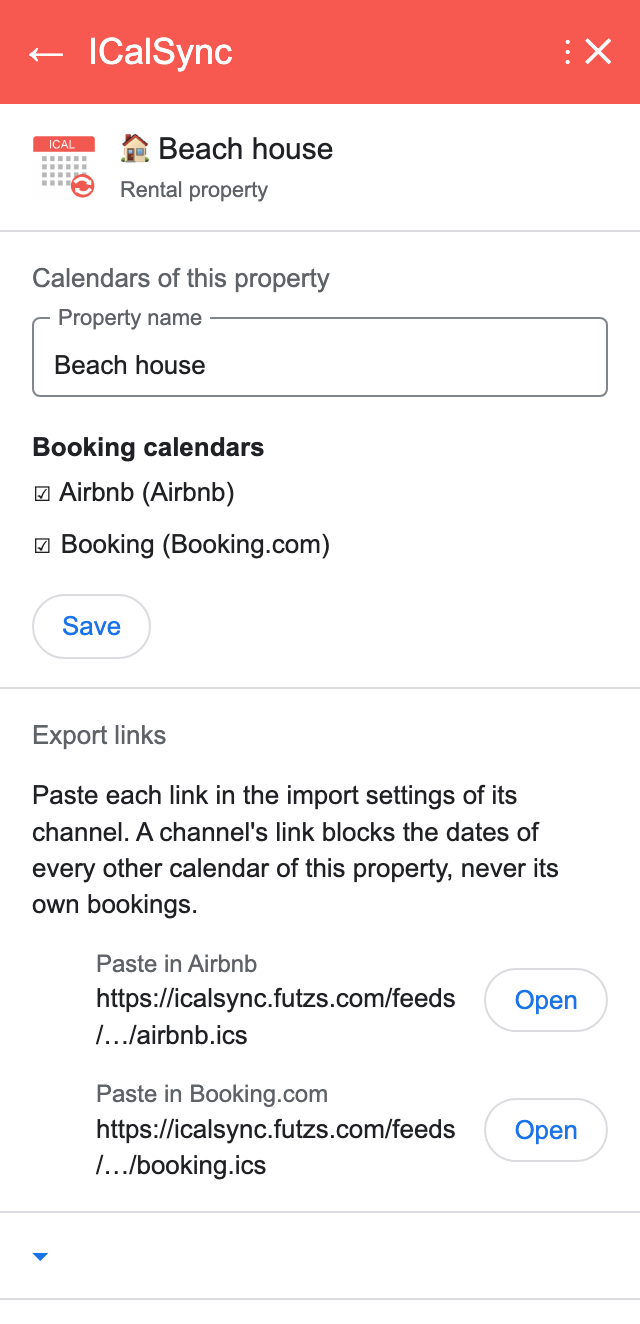
For hosts with the same place on several channels: ICalSync blocks the dates booked on one channel on all the others, and warns you by e-mail about double bookings.
- Connect each channel’s calendar link (export, below) with Calendar link (ICS). ICalSync recognises the channels and hides guest names.
- Open Rental properties on the home card, add a property and tick its calendars.
- Under Export links, copy the link labelled Paste in Airbnb into Airbnb’s import setting, Paste in Booking.com into Booking.com, and so on.
| Channel | Export (copy into ICalSync) | Import (paste the ICalSync link) |
|---|---|---|
| Airbnb | Listings › your listing › Availability › Connect calendars › Export calendar | Same page › Import calendar, name it ICalSync |
| Booking.com | Extranet › Rates and Availability › Sync calendars › Add calendar connection | Same page, name it ICalSync |
| Vrbo | Calendar › Import and export › export link | Import a calendar |
| Expedia | Partner Central › Rooms and rates › Calendar sync | Same page |
Channels refresh imported calendars every 30 minutes to a few hours; ICalSync cannot make them faster. Direct bookings kept in a Google Calendar can be added to the property too: add its secret iCal address as a calendar link.
Plans and trial
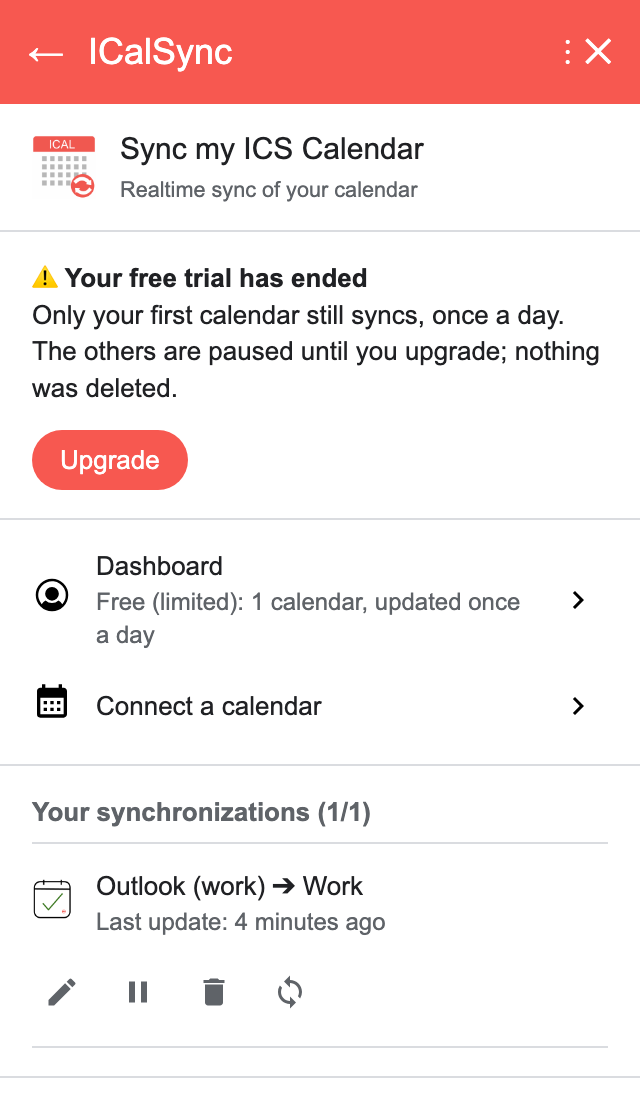
Every new account gets a 14-day trial with all features. When it ends, nothing is deleted: your first calendar keeps syncing once a day and the others pause until you choose a plan in Dashboard › Plans & pricing.
Troubleshooting
Nothing appeared after I added a calendar link
Open the link in a browser. If it downloads a text file starting with
BEGIN:VCALENDAR, the link is fine; check the Google calendar you picked. If
it asks you to sign in, it is a web page link, not the ICS link.
Account disconnected
The connected account refused access: the app-specific password was revoked, the Microsoft or Google access was removed, or the password changed. Open Connect a calendar, click the account and connect it again.
Events are duplicated
The same calendar is probably subscribed in Google (From URL) and synced by ICalSync. Remove the subscription and keep the sync.
Times are off by an hour
Some systems publish calendars without time zone information. Check the time zone of the source and of the Google calendar.
Still stuck? E-mail support-icalsync@futzs.com.