
How to add your iCloud calendar to Google Calendar (and keep it in sync)
Your iPhone keeps your calendar in iCloud. Your work, your partner or your school lives in Google Calendar. Until the two meet, you keep both apps open and copy events by hand, or you forget to.
There is no “send to Google” button in Apple’s Calendar. You can still get there in three ways: a public link, a one-time file import, or a sync that signs in to iCloud for you. This guide covers each one, what it gets wrong, and how to fix the problems people run into most.
The short version
If you are fine with the calendar being readable by anyone who has its link:
- On your iPhone, open Calendar and tap Calendars.
- Tap the info button next to the iCloud calendar you want.
- Turn on Public Calendar, tap Share Link, and copy it.
- On a computer, open Google Calendar. Next to Other calendars, click + and choose From URL.
- Paste the link and click Add calendar.
The calendar appears under Other calendars. It is read-only and updates slowly. If you want it private, or quicker, skip to option 3.
Why this is harder than it looks
Apple and Google both speak the same calendar format, iCalendar (.ics), but
neither offers a direct connection to the other. Google Calendar can read a
calendar from a link, and it can import a file. Apple can publish a calendar as
a link, and the Mac can export a file. Each of the three options below combines
those pieces differently.
The catch is that Google’s link option only works with public calendars. Google’s help page says so plainly: you can only add a calendar with a link if that calendar is public. So the simple route means making your iCloud calendar public.
Option 1: make the calendar public and subscribe
Apple lets the owner of an iCloud calendar turn on Public Calendar. You can do it from three places:
- iPhone or iPad: in Calendar, tap Calendars, then the info button next to the calendar, turn on Public Calendar and tap Share Link (Apple’s iPhone guide).
- iCloud.com: open icloud.com/calendar, open the calendar’s information next to its name in the sidebar, turn on Public Calendar and copy the link (Apple’s iCloud guide).
- Mac: in Calendar, hold the pointer over the calendar’s name, click the Share Calendar button and select Public Calendar (Apple’s Mac guide).
Only iCloud calendars have this switch. Calendars under On My Mac, or ones that belong to another account on your device, do not.
The link Apple gives you usually starts with webcal://. That just tells a
device to open it in a calendar app. If Google Calendar does not accept it,
replace webcal with https and try again.
Then add it to Google Calendar on a computer: Other calendars → + → From URL, paste, Add calendar. Google does not let you subscribe from the phone app, but once added on a computer the calendar shows on your phone too.
It is free and quick. Before you rely on it, know its limits:
- Anyone with the link can read it. Apple says it directly: anyone can view a public calendar. There is no password on the link.
- Slow updates. Google does not publish how often it re-reads a subscribed link, and you cannot make it go faster. In practice an event you add on your iPhone can take several hours to a day to show up. We explain why in why your Google Calendar subscription is not updating.
- Read-only and one-way. You cannot edit, move or recolor single events in Google, and nothing you add in Google goes back to iCloud.
Option 2: export and import a file once
On a Mac, you can save an iCloud calendar as a file: select it in the calendar
list, then choose File → Export → Export
(Apple’s guide). In
Google Calendar, open Settings → Import & export, select the .ics file,
pick the Google calendar it should go into, and click Import
(Google’s guide).
This copies a snapshot. The events become ordinary Google events you can edit, and Google notes that guests are not imported. They also never update again: change a dentist appointment on your iPhone and Google still shows the old time. Use this once, when you are moving away from iCloud for good, not to keep two calendars side by side.
Option 3: sync with an app-specific password
The third option leaves your calendar private. A sync tool signs in to iCloud for you, reads the calendar, and copies its events into one of your own Google calendars. Apple does not let third-party apps use your regular Apple Account password, so you give the tool an app-specific password instead: a separate password that only works for that app and that you can revoke on its own.
This is what ICalSync does. It is a Google Workspace add-on that runs in the right-hand side panel of Google Calendar on a computer. Synced events then show in Google Calendar on your phone like any others.
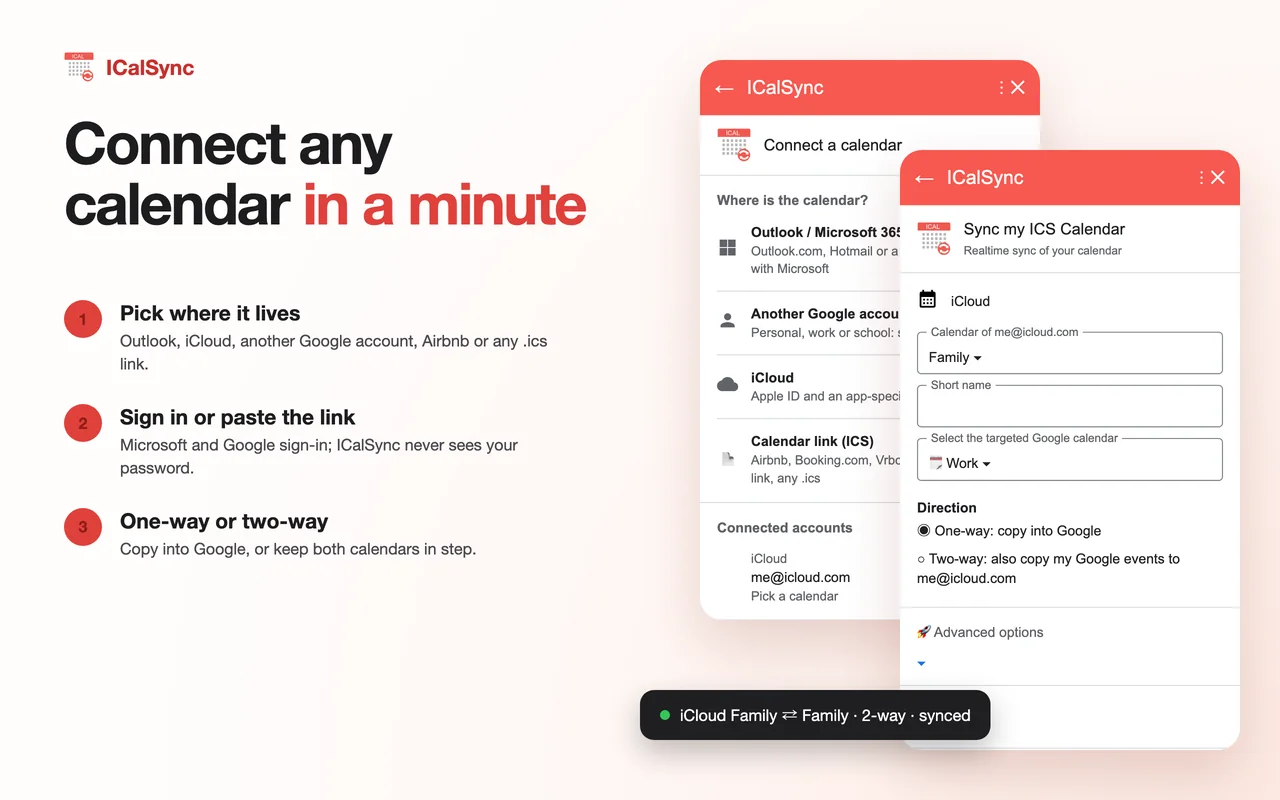
It checks iCloud every 5 minutes on the trial and Pro plans, and every 15 minutes on Personal, and the Sync now button runs it right away. New events are added, moved events move, and deleted events disappear. The sync goes one way, from iCloud to Google.
Side by side
| Public link (From URL) | Import once | Sync (ICalSync) | |
|---|---|---|---|
| Calendar stays private | No, anyone with the link can read it | Yes | Yes |
| New and changed events | Hours to a day, on Google’s schedule | Never | Every 5 to 15 minutes, or right away with Sync now |
| Edit or recolor events in Google | No | Yes | Yes, in the Google calendar you chose |
| Set up from a phone | No | No | No (Google Calendar add-ons run on a computer) |
| Cost | Free | Free | 14-day free trial, then a paid plan; a free plan updates one calendar once a day |
Create the app-specific password
Apple’s guide to app-specific passwords covers this in full. The short version:
- Make sure your Apple Account uses two-factor authentication. Apple only lets you create app-specific passwords when it is on.
- Sign in at account.apple.com.
- In Sign-In and Security, select App-Specific Passwords.
- Create a new one and name it something you will recognize later, such as ICalSync.
- Copy the password Apple shows. It looks like
xxxx-xxxx-xxxx-xxxx.
You can revoke it at any time from the same page, and the app that uses it is signed out. One thing to know: when you change or reset your main Apple Account password, Apple revokes all your app-specific passwords at once, so you will need a new one.
Connect iCloud in ICalSync
- Install ICalSync from the Google Workspace Marketplace and open it from the right-hand panel of Google Calendar.
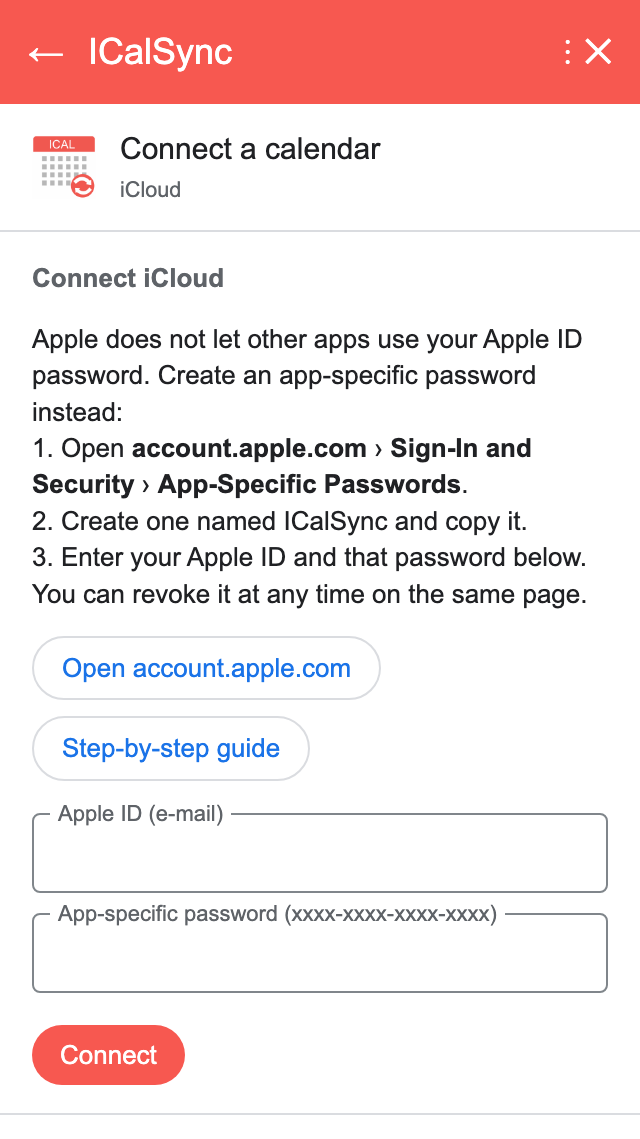
- Under School & work, choose iCloud.
- Enter your Apple ID (e-mail) and the App-specific password, then click Connect.
- Pick the iCloud calendar, choose the Google calendar its events land in, and click Sync.
It helps to create a separate Google calendar first (Other calendars → + → Create new calendar), named iCloud or Family. You can give it its own color and hide it in one click. The iCloud section of the help pages has the same steps with screenshots.
The 14-day trial starts when you connect your first calendar, not when you install, and it does not ask for a card. After that, Personal is $4 a month or $39 a year for 5 calendars, and Pro is $9 a month or $86 a year for 20 calendars.
Fixing common problems
Apple refuses the password
This is the most common problem, and it nearly always comes from one of three things:
- You used your Apple Account password. Sync tools need the app-specific
password, the one in
xxxx-xxxx-xxxx-xxxxform. - The e-mail is not your Apple ID. Use the address you sign in to iCloud with, which may be different from the one you use every day.
- Two-factor authentication is off, or you changed your Apple password since you created the app-specific one. Create a new one.
In ICalSync, the form stays open with the refusal explained in red, and your Apple ID still filled in, so you can fix the entry. From the second refusal, it lists these checks and offers a free 15-minute setup call.
The sync says “Account disconnected”
If Apple briefly refuses the login, ICalSync retries for two hours before it marks the account disconnected. If you revoked the app-specific password, or changed your Apple password, create a new app-specific password and connect again.
The public link stopped working
If you turned Public Calendar off, or the person who owns the calendar did, Google can no longer read the link. The calendar stays in your sidebar but stops updating. Turn sharing back on and copy the link again, or switch to a sync that does not depend on the link.
Times are off by an hour or more
Check the time zone in Google Calendar under Settings → General, and on your iPhone in the Calendar settings, where Time Zone Override can pin events to one zone. When the two disagree, events look shifted.
Every event appears twice
You probably added the calendar twice, for example once with From URL and once with a sync tool. Remove the extra one from Other calendars and keep one. Duplicates can also come from Option 2: an imported snapshot sitting next to a live calendar.
A calendar someone shared with you
Only the owner of an iCloud calendar can make it public, so for Option 1 you need to ask them. With a sync tool, the calendar list shows what your Apple ID can see; if a shared calendar is missing, check that you accepted the invitation in Apple Calendar.
A word on privacy
A public iCloud link has no password, and calendar events often carry more than times: addresses, names, notes. Make a calendar public only if you would be comfortable with a stranger reading it, and turn it off when you stop using the link. An app-specific password is narrower: it is tied to one app, it does not reveal your main password, and you can revoke it without touching anything else.
Which option to choose
If the calendar holds nothing sensitive and a delay of a few hours does not matter, the public link with From URL is free and fine. If you are leaving iCloud for good, import the file once. If the calendar is personal, or you plan your day around it and need changes to show up quickly, sync it with an app-specific password.
The same idea works for other calendars. Our guide to syncing an Outlook calendar into Google Calendar covers Microsoft accounts, and the ICalSync help pages walk through every setting.
Questions
How do I add my iCloud calendar to Google Calendar?
Make the calendar public on your iPhone (Calendars, the info button next to the calendar, Public Calendar, Share Link) or on iCloud.com, and copy the link. On a computer, open Google Calendar, click the plus sign next to Other calendars, choose From URL, paste the link and click Add calendar. For a private calendar, use a sync tool that signs in with an app-specific password instead.
Why is my iCloud calendar not updating in Google Calendar?
A calendar added with From URL is refreshed on Google's schedule, which Google does not publish and you cannot change. A new or moved event can take several hours to a day to appear. A sync tool such as ICalSync checks iCloud every few minutes and copies the changes into a calendar you own.
Can I add my iCloud calendar without making it public?
Not with Google's From URL option, which only reads public calendars. To keep the calendar private, create an app-specific password for your Apple Account and give it to a sync tool that connects to iCloud directly, such as ICalSync.
Why does Apple refuse my password in a sync app?
Third-party apps cannot use your regular Apple Account password. They need an app-specific password, which you create at account.apple.com under Sign-In and Security, App-Specific Passwords. Your account must have two-factor authentication turned on, and changing your main password revokes every app-specific password.
Is a public iCloud calendar link safe?
Anyone who has the link can read every event in that calendar, without signing in. Use it only for calendars you would not mind a stranger seeing, and turn Public Calendar off when you no longer need it.
Your iCloud calendar in Google Calendar, without a public link
14-day free trial from your first calendar. No credit card.